Have you ever stared at a string of numbers on Google Maps and wondered what they mean? You are not alone. The Google Maps coordinate format can look like a secret code if you are not familiar with it.
Whether you are optimizing local SEO, planning a delivery route, or doing B2B lead generation, understanding how to read and use these numbers is incredibly helpful. Knowing exactly where a business or landmark sits on the globe gives you precise control over your data.
In this guide, we will break down the exact latitude and longitude format used by Google Maps. We promise to keep it simple. You will learn how to find, read, and convert these coordinates. We will also show you how to extract them in bulk so you can save hours of manual work.
Let us dive right into the world of mapping data.
What Are Google Maps Coordinates?
At the most basic level, coordinates are a set of numbers that identify a highly specific location on Earth. Think of them as the absolute address of a place. Even if a building has no street name or house number, it still has coordinates.
These numbers are made up of two distinct parts:
- Latitude: This measures how far north or south a location is from the Equator. The Equator sits at zero degrees.
- Longitude: This measures how far east or west a location is from the Prime Meridian. The Prime Meridian runs through Greenwich, England.
When you put these two numbers together, they form a perfect grid system. Google Maps uses this exact grid to pinpoint locations, guide your navigation, and display local businesses. Understanding this GPS coordinates format is the first step to mastering location data.
What Is Google Maps Coordinate Format?
Google Maps coordinate format refers to the latitude and longitude values used to identify an exact location on Earth, typically shown in decimal degrees (e.g., 40.7128, -74.0060).
Google Maps Coordinate Format Types

Not all coordinates look the same. Depending on the tool you use, you might see a few different styles. Here are the three main types of coordinate formats you will encounter.
Decimal Degrees (DD)
This is the most common format you will see online. It uses straightforward decimal numbers to represent a location.
- Example: 40.7128, -74.0060 (New York City)
- How it works: Positive numbers mean North or East. Negative numbers mean South or West. Google Maps highly prefers this decimal degrees format because it is incredibly easy for computers and mapping software to process.
Google Maps Coordinate Format Examples
Here are some real-world examples of coordinates in decimal format:
- New York → 40.7128, -74.0060
- London → 51.5074, -0.1278
- Dhaka → 23.8103, 90.4125
- Tokyo → 35.6762, 139.6503
Degrees, Minutes, and Seconds (DMS)
Before the internet, navigators used this traditional format. It breaks down the degrees into smaller units called minutes and seconds.
- Example: 40° 42' 46.1" N 74° 00' 21.6" W
- How it works: Instead of decimals, it uses standard geographic symbols. You will often see this format on older GPS devices or official nautical maps. While Google Maps understands degrees minutes seconds (DMS), it usually converts it to decimal degrees for standard use.
Degrees and Decimal Minutes (DMM)
This format acts as a middle ground between the first two. It uses standard degrees but turns the minutes into decimals.
- Example: 40 42.768, -74 0.360
- How it works: Electronic navigation systems and aviation tools frequently use this format. You will rarely need to worry about it for standard web mapping, but it is good to recognize it.
How Google Maps Displays Coordinates
When you open Google Maps, the platform relies heavily on the Decimal Degrees (DD) format. This is the default Google Maps lat long format.
If you look at the URL in your browser while searching for a location, you will spot an "@" symbol followed by a string of numbers. Those numbers are the exact decimal coordinates of the map center.
When you drop a pin or click on an unmapped area, a small info box pops up at the bottom of the screen. This box clearly displays the latitude first, followed by a comma, and then the longitude. Keeping the format uniform ensures that users around the world have a consistent experience.
How to Find Coordinates in Google Maps
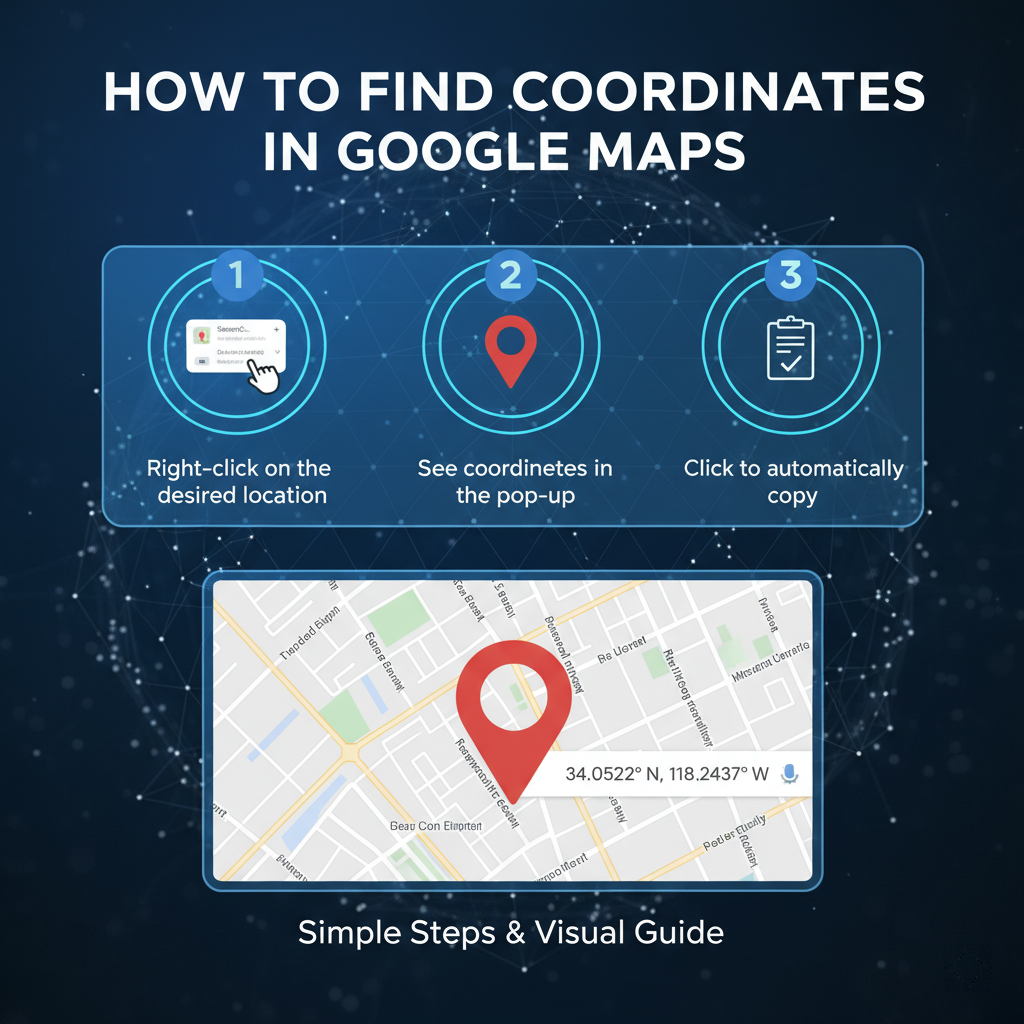
You do not need to be a developer to find coordinates from an address. Google makes it very simple to grab these numbers on both desktop and mobile devices.
Desktop Method
Finding coordinates on your computer takes just two clicks:
- Open Google Maps in your web browser.
- Find the location or building you want to identify.
- Right-click precisely on the spot or building.
- A menu will appear. The very top item on this menu is the Google Maps coordinate format in decimal degrees.
- Click the numbers with your left mouse button. This automatically copies them to your clipboard.
Mobile Method
If you are using the Google Maps app on your phone, follow these short steps:
- Open the Google Maps app.
- Find the location you want.
- Tap and hold your finger on the screen over an area that does not already have a label.
- A red pin will drop onto the map.
- Look at the search box at the top or the info panel at the bottom. You will see the coordinates displayed clearly.
How to Convert Coordinate Formats
Sometimes you have a list of coordinates in DMS format, but your software requires decimal degrees. Knowing how to convert coordinates google maps style is a highly useful skill.
The conversion basics rely on simple math. Since there are 60 minutes in a degree and 60 seconds in a minute, you divide the minutes by 60 and the seconds by 3600 to find your decimals.
Fortunately, you rarely need to do this math yourself. If you paste a DMS format directly into the Google Maps search bar, the platform automatically understands it and takes you to the right location. There are also hundreds of free online coordinate converters that allow you to paste one format and instantly copy the other.
How to Extract Coordinates in Bulk
Finding coordinates for one or two places is easy. But what happens if you need the locations for 500 different roofing companies or 1,000 coffee shops?
Manual extraction is painfully slow. Clicking, copying, and pasting hundreds of times is not a scalable way to work. It drains your time and increases the chance of human error. If you are doing Google Maps data extraction for a large campaign, you need an automated solution.
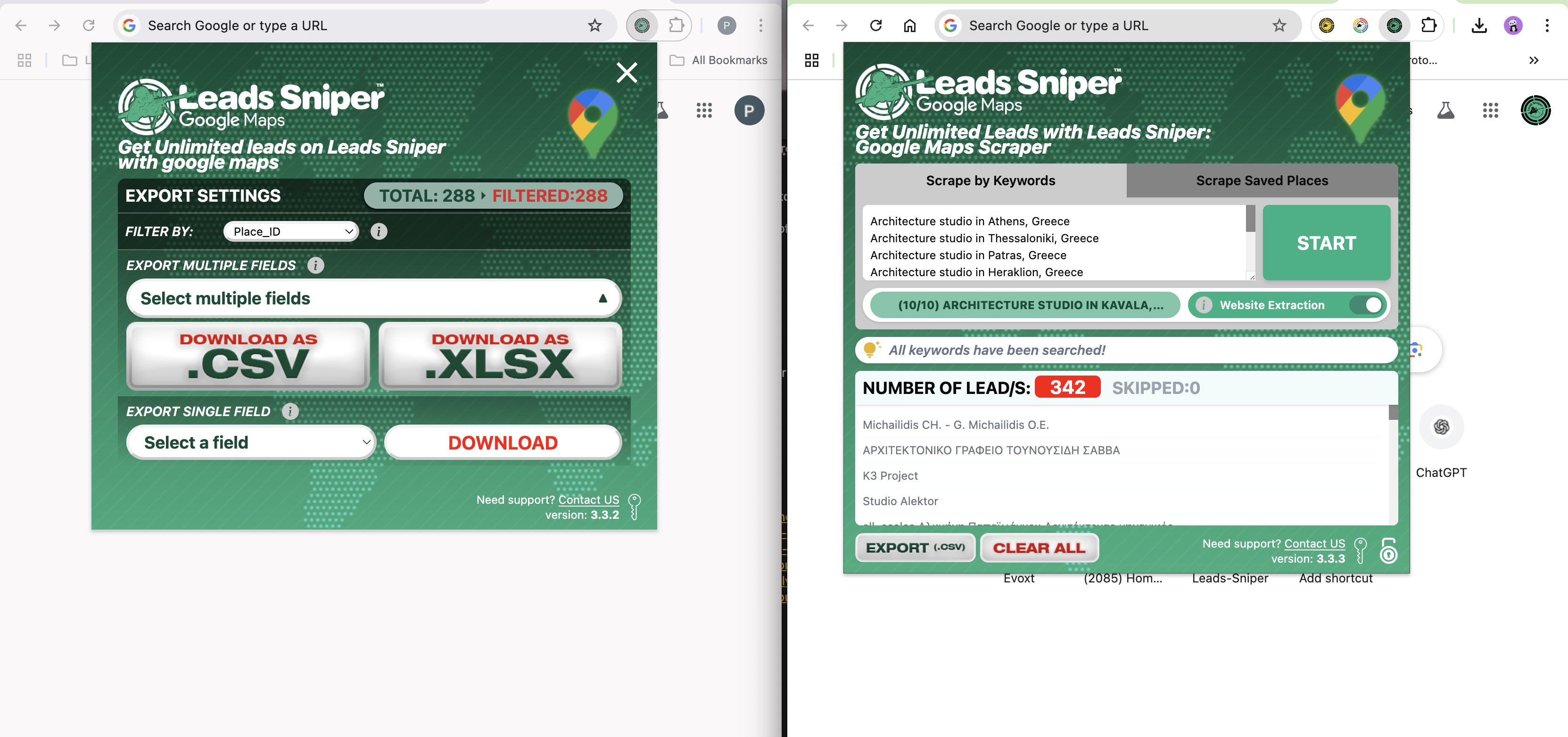
This is where smart software steps in. Tools like Leads Sniper make it easy to extract GPS coordinates and business data directly from Google Maps at scale.
Using a dedicated extract GPS coordinates from Google Maps tool changes the game entirely. Instead of wasting hours on manual labor, you simply enter your target keywords and locations. The software scans the map and pulls out the exact decimal degrees, along with business names, phone numbers, and websites.
This bulk google maps coordinate extraction is perfect for lead generation. It allows your sales or logistics teams to focus on outreach and planning, rather than tedious data entry.
Use Cases of Google Maps Coordinates
Why do professionals care so much about this precise coordinate format example? Because accurate location data powers several major industries.
- Local SEO: Search engine professionals use exact coordinates to ensure business listings are perfectly accurate across all online directories. This consistency helps businesses rank higher in local search results.
- Lead Generation: B2B sales teams map out potential clients within specific geographic zones. Knowing exact coordinates helps them plan localized outreach campaigns.
- Delivery and Logistics: Couriers cannot always rely on street addresses, especially in rural or newly developed areas. Precise coordinates ensure drivers drop packages exactly where they belong.
- Data Analysis: Researchers and data scientists plot coordinates to study market trends, map demographics, or track environmental changes over time.
Common Mistakes to Avoid
Even seasoned professionals sometimes mess up their map data. Keep these common mistakes in mind when handling coordinates:
- Mixing Up Latitude and Longitude: Latitude always comes first. If you swap them, your pin will end up on the wrong side of the world.
- Missing the Negative Sign: A forgotten minus sign will place a location in the northern hemisphere instead of the southern, or the eastern instead of the western. Always double-check your symbols.
- Using the Wrong Format: If your software asks for decimal degrees, entering DMS will cause an error. Always verify which format your specific tool requires before importing data.
- Incorrect Conversion: Doing the conversion math manually often leads to tiny errors. A mistake of just a few decimal points can move a location by several miles. Always use a reliable converter.
Frequently Asked Questions
What format does Google Maps use for coordinates?
Google Maps primarily uses the Decimal Degrees (DD) format. It displays latitude first, followed by longitude (e.g., 34.0522, -118.2437).
How do I convert coordinates?
The easiest way is to paste your DMS coordinates directly into the Google Maps search bar. Google will automatically interpret them and show the location. You can also use free online coordinate converter tools.
Can I find coordinates from an address?
Yes. Simply type the address into Google Maps. Once the pin appears on the map, right-click the pin (on a desktop) to view and copy the exact decimal coordinates.
What is the difference between DMS and decimal format?
DMS (Degrees, Minutes, Seconds) uses traditional geographic symbols to break down location data, similar to reading a clock. The decimal format converts those minutes and seconds into straightforward decimal numbers, making it much easier for computers to read.
Conclusion
Understanding the Google Maps coordinate format does not have to be difficult. By recognizing the difference between decimal degrees and DMS, you can easily read, find, and convert location data for any project.
Whether you are improving local SEO, mapping out delivery routes, or building a target list of local businesses, precise coordinates give you the accuracy you need.
Remember, manually gathering this data is a thing of the past. If you need to pull large amounts of mapping data, lean into automation. Adopting smarter extraction tools will save you countless hours and give you an immediate edge over competitors relying on manual copy-pasting.