
How to Find GPS Coordinates (Latitude & Longitude) on Google Maps
Introduction: In today's digitally connected world, precise location data is more valuable than ever. Whether you're navigating unfamiliar terrain, sharing your exact whereabouts with friends, planning a trip, or engaging in outdoor hobbies, understanding how to pinpoint a specific spot on the map is a crucial skill.
Google Maps, a ubiquitous tool for navigation and exploration, offers a straightforward yet powerful way to obtain these precise location markers: GPS coordinates, comprised of latitude and longitude. This article will guide you through the simple steps to unlock this "How To Find Coordinates Google Maps" information across different devices, demystify coordinate formats, and illustrate their diverse practical applications.
The Fundamentals: Understanding Latitude and Longitude
Latitude (horizontal lines) and longitude (vertical lines) create a global grid, allowing any location on Earth to be specified with a unique set of coordinates.
At its core, the Earth's surface can be thought of as a vast, invisible grid. Latitude and longitude are the two numbers that define any specific point on this grid, forming the basis of our global positioning system. They are essential components of any GPS coordinates you retrieve.
Latitude: North/South Positioning
Latitude measures a location's position north or south of the Equator. Imagine horizontal lines, known as parallels, circling the Earth parallel to the Equator. The Equator itself is designated as 0 degrees latitude.
Lines of latitude increase in degree value as you move north towards the North Pole (up to 90 degrees North) or south towards the South Pole (up to 90 degrees South). Locations north of the Equator are marked with "N," and those south are marked with "S."
Longitude: East/West Positioning
Longitude measures a location's position east or west of the Prime Meridian. The Prime Meridian is an arbitrary line that runs from the North Pole to the South Pole through Greenwich, London, and is designated as 0 degrees longitude. Vertical lines, known as meridians, extend from pole to pole.
Longitude lines increase in degree value as you move east (up to 180 degrees East) or west (up to 180 degrees West) from the Prime Meridian. Locations east of the Prime Meridian are marked with "E," and those west are marked with "W."
How Latitude and Longitude Work Together
Latitude and longitude are always used in conjunction to define a unique spot on Earth. Their intersection creates a precise global address. Think of latitude as the "street number" indicating how far north or south you are, and longitude as the "street name" indicating how far east or west you are. Together, they pinpoint a specific location with remarkable accuracy, forming the essential GPS coordinates.
Getting GPS Coordinates on Google Maps Desktop (Browser)
Retrieving latitude and longitude on a desktop computer using Google Maps is a remarkably simple process, primarily involving a few clicks.
Step-by-Step: Extracting Coordinates from a Specific Point
The most common and direct method on desktop relies on the right-click function.
- Navigate to Google Maps: Open your web browser and go to maps.google.com.
- Locate Your Desired Point: Use the search bar to find an address, a landmark, or simply pan and zoom to the specific location on the map for which you need the coordinates.
- Right-Click the Location: Position your cursor directly over the exact spot on the map. Perform a right-click with your mouse.
- Observe the Pop-up: A context menu, or pop-up, will appear. At the top of this menu, you will see the latitude and longitude displayed in Decimal degrees format.
- Copy the Coordinates: Click on the displayed coordinates. This action typically copies them automatically to your clipboard, ready for you to paste elsewhere.
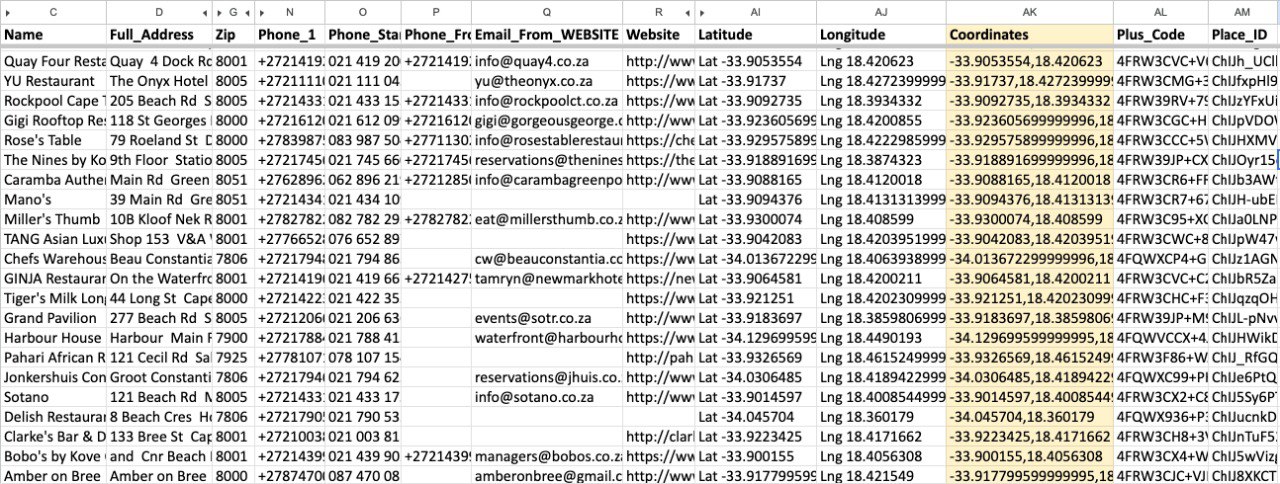
If you don't understand them manually or confused, you can look our leads sniper tool for finding coordinates easily. It's easy to generate and have resonable packages according to your budget.
Tips for Desktop Precision
- Zoom In: For highly accurate coordinates, zoom in as far as possible on the map. This allows for more precise placement of your cursor over the desired location.
- Target Features: If you're trying to get the coordinates for a specific building or landmark, try to right-click on a prominent feature of it, like an entrance or a central point, rather than empty space around it.
- Use the "Measure Distance" Tool: If direct right-click doesn't yield the expected pop-up with coordinates, using the "Measure distance" tool after dropping a pin can sometimes reveal them or confirm placement.
Getting GPS Coordinates on Google Maps Mobile (Android & iOS App)
Accessing GPS coordinates on your smartphone or tablet via the Google Maps app is just as intuitive, with a few different approaches catering to various needs. Whether you’re using an Android device or an iPhone, the process is generally consistent.
Method 1: Dropping a Pin to Reveal Coordinates
This is the most versatile method for finding coordinates for any point on the map.
- Open the Google Maps App: Launch the Google Maps application on your Android or iPhone.
- Find Your Location: Use the search bar to find a specific address or landmark, or simply pan and zoom to the desired location.
- Drop a Pin: Long-press (tap and hold) on the map at the exact point you want to mark. A red pin will appear, and a card with information about that location will slide up from the bottom of the screen.
- View Coordinates: On the card that appears, you will see the GPS coordinates listed, usually at the top, in Decimal degrees format.
- Copy Coordinates: Tap on the coordinates to copy them to your device's clipboard.
Method 2: Finding Coordinates for an Existing Location or Address
If you've searched for a specific address or business, you can find its coordinates directly from the search results.
- Search for the Address/Location: Type the address or name of the place into the search bar in the Google Maps app.
- Select the Result: Tap on the correct result from the search suggestions.
- View Details: A card will appear with information about the selected location. Scroll down the details card. The GPS coordinates (latitude and longitude) will be visible towards the bottom of this information panel, typically listed in Decimal degrees format.
- Copy Coordinates: Tap on the coordinates to copy them.
Method 3: Getting Your Current GPS Location
Finding your own real-time GPS coordinates is straightforward, utilizing the familiar blue dot.
- Open Google Maps: Ensure your device's GPS is enabled and open the Google Maps app.
- Tap the Blue Dot: Tap the blue dot that indicates your current location on the map.
- View Information: A small card will appear showing details about your current position. The GPS coordinates (latitude and longitude) will be displayed here, usually in Decimal degrees format.
- Copy Coordinates: Tap the coordinates to copy them.
Decoding Coordinate Formats: Decimal Degrees vs. Degrees, Minutes, Seconds
.jpg)
Understanding the different ways GPS coordinates can be represented is crucial for accuracy and compatibility when using them in various applications or devices. Google Maps primarily uses one format, but it's helpful to recognize others.
Decimal Degrees (DD): The Standard Google Maps Format
Decimal degrees (DD) is the most common and simplest format for representing GPS coordinates in digital systems, including Google Maps. In this format, latitude and longitude are expressed as decimal numbers.
- Latitude: A single decimal number, where positive values indicate North and negative values indicate South. For example, 34.0522° N is represented as 34.0522.
- Longitude: A single decimal number, where positive values indicate East and negative values indicate West. For example, -118.2437° W is represented as -118.2437.
Google Maps displays coordinates in this format, typically with five or six decimal places, offering high precision. For instance, a common display might look like: 34.0522, -118.2437.
Degrees, Minutes, Seconds (DMS): The Traditional Sexagesimal Format
The Degrees, Minutes, Seconds (DMS) format is a more traditional way of expressing geographic coordinates. It divides each degree of latitude or longitude into 60 minutes, and each minute into 60 seconds.
- Format:
DDD° MM' SS.S"(e.g., 34° 3' 7.92" N, 118° 14' 37.32" W). - Latitude: Degrees (°), Minutes ('), Seconds ("). North is indicated by N, South by S.
- Longitude: Degrees (°), Minutes ('), Seconds ("). East is indicated by E, West by W.
This format is often seen in older navigational systems and some specialized mapping applications. While Google Maps primarily uses DD, it can interpret DMS input.
Converting Between Formats
Often, you may need to convert between DD and DMS. This is done using simple mathematical formulas:
- DD to DMS:
- Separate the whole degree number.
- Multiply the decimal part by 60 to get the minutes. Take the whole number part of the result.
- Multiply the decimal part of the minutes by 60 to get the seconds.
- Example: Convert 34.0522° to DMS.
- Degrees: 34°
- Minutes: 0.0522 * 60 = 3.132. Take 3'.
- Seconds: 0.132 * 60 = 7.92. Take 7.92".
- Result: 34° 3' 7.92"
- DMS to DD:
- Convert seconds to decimal minutes by dividing by 60.
- Add this to the whole minutes.
- Convert decimal minutes to decimal degrees by dividing by 60.
- Add this to the whole degrees. Remember to account for North/South and East/West indicators (South and West are negative).
- Example: Convert 34° 3' 7.92" N to DD.
- Decimal Minutes: 3' + (7.92" / 60) = 3' + 0.132' = 3.132'
- Decimal Degrees: 34° + (3.132' / 60) = 34° + 0.0522° = 34.0522°
Online converters are readily available and are the most efficient way to perform these conversions accurately.
Using GPS Coordinates to Find a Specific Location on Google Maps
Once you have obtained GPS coordinates, they become a powerful tool for navigating to a precise location on Google Maps, even if there is no specific address associated with it.
How to Input Coordinates into the Search Bar
The search box on Google Maps is designed to recognize and interpret various coordinate formats.
- Open Google Maps: Access Google Maps on your desktop browser or mobile app.
- Access the Search Bar: Locate the search bar at the top of the interface.
- Enter Coordinates: Type or paste the GPS coordinates directly into the search bar. Ensure you use the correct format and include any directional indicators (N, S, E, W) or negative signs.
- Perform Search: Press Enter or tap the search button.
Google Maps will then pan and zoom to the exact location defined by the coordinates you entered. If you entered them correctly, a pin will appear at that spot, and information about the location will be displayed.
Supported Coordinate Input Formats for Search
Google Maps is quite flexible and generally supports the following common coordinate formats in its search bar:
- Decimal Degrees (DD):
40.7128, -74.006040.7128 N, 74.0060 W
- Degrees, Minutes, Seconds (DMS):
40° 42' 46.08" N, 74° 0' 21.60" W40 42 46 N 74 0 21 W
- Degrees and Decimal Minutes (DMM): (Less common but often supported)
40 42.768 N, 74 0.360 W
It's always best to use the Decimal degrees format as it's the native display of Google Maps and the least prone to input errors. If you are unsure, use an online converter to get your coordinates into DD format before searching.
Advanced Insights: Plus Codes and Altitude Information
Beyond standard latitude and longitude, Google Maps offers additional location-based data and tools that can enhance how you pinpoint and share locations.
Google Maps Plus Codes: An Alternative for Sharing Locations
Plus Codes are an innovative system developed by Google that provide a short, alphanumeric code for any location on Earth. They function similarly to an address but are simpler and more universally applicable, especially in areas lacking traditional street names and numbers.
- How They Work: A Plus Code is derived from a grid system superimposed on the globe. It typically consists of six or more characters, followed by a city or region name. For example:
849VCWC8+Q9. - Finding Plus Codes: In the Google Maps app, after you drop a pin or tap on a location, the Plus Code is usually displayed at the bottom of the information card, below the coordinates.
- Using Plus Codes: You can enter a Plus Code directly into the Google Maps search bar to navigate to that specific location. They are excellent for sharing precise spots when traditional addresses are unavailable or ambiguous.
Understanding Altitude on Google Maps
While the primary focus is on latitude and longitude, Google Maps can also provide information about the altitude of a given location, though this feature is more prominent in Google Earth.
- Accessing Altitude: In Google Earth, you can often see an altitude reading associated with your cursor's position. On Google Maps, direct altitude readings are less common in the standard interface. However, if you right-click on a point and select "Measure distance," the altitude difference between points may be displayed, or information related to elevation contours can sometimes be inferred.
- Limitations: Altitude data on Google Maps and Earth is generally an approximation and may not be as precise as dedicated surveying equipment. It's based on digital elevation models rather than real-time GPS altitude readings for every point.
Practical Applications: Why You Need Accurate GPS Coordinates
The ability to accurately retrieve and use GPS coordinates unlocks a wide array of practical applications across various domains. Understanding how to get and use them can significantly enhance your daily life and professional activities.
Precision for Navigation & Travel Planning
For travelers and navigators, GPS coordinates offer unparalleled precision. Instead of relying on vague directions or addresses that might be incomplete, you can pinpoint an exact entrance, a specific hiking trail junction, or a remote campsite. This is invaluable for optimizing routes, avoiding confusion, and ensuring you arrive precisely where intended.
Sharing Locations for Personal or Emergency Use
Sharing your precise location can be vital. Whether coordinating a meeting point in a crowded area, directing a delivery to a hard-to-find spot, or providing emergency services with your exact whereabouts, sending GPS coordinates ensures no ambiguity. This is particularly useful for off-the-beaten-path adventures or when cellular service might be spotty for ongoing communication.
Professional & Technical Use Cases
Many professions rely heavily on accurate geographic data. Surveyors, engineers, urban planners, real estate agents, and logistics managers use GPS coordinates for mapping, site analysis, property demarcation, and efficient resource allocation. The ability to precisely mark and retrieve points on Google Maps is a foundational skill in many technical fields.
Geocaching, Photography, and Outdoor Adventures
Outdoor enthusiasts find GPS coordinates indispensable. Geocaching, a popular treasure-hunting game, relies entirely on players using coordinates to find hidden caches.
Photographers can record the GPS coordinates of stunning vistas to revisit them or to geotag their images, embedding location data within the photo file itself. For hikers, climbers, and explorers, having precise coordinates for waypoints or interesting features enhances safety and exploration.
Troubleshooting & Optimizing Your Coordinate Retrieval
While Google Maps makes retrieving GPS coordinates straightforward, occasional issues can arise. Understanding common problems and best practices can ensure you get the most accurate and useful data.
Ensuring Maximum Accuracy and Precision
The accuracy of the coordinates you retrieve depends on several factors. Always zoom in as far as possible on Google Maps to place your cursor or drop a pin precisely.
Ensure your device's location services are enabled and have a strong GPS signal. For critical applications, cross-referencing with other mapping tools or dedicated GPS devices is advisable.
Pin Placement Issues
Accidentally dropping a pin in the wrong spot is common. If this happens, simply tap the pin again or the information card that appears and then tap the "X" or "Clear" button to remove it.
You can then try dropping a new pin more carefully. On desktop, if the pop-up doesn't appear, ensure you're clicking directly on the map feature, not an overlay or menu item.
Pop-up Behavior and Coordinate Display
Sometimes, the pop-up box with coordinates on desktop might not appear immediately, or a specific address might not show coordinates directly in its detail card on mobile.
In such cases, using the "Measure distance" tool after dropping a pin (desktop) or trying to drop a pin on the desired location itself (mobile) are effective workarounds. Ensure your Google Maps app is updated to the latest version, as updates often refine these functionalities.
Copying & Sharing Coordinates Effectively
When copying coordinates, always double-check that you've captured the entire string accurately, including the negative signs or directional indicators for longitude. When sharing, consider the recipient's technical familiarity.
Providing coordinates in Decimal degrees format is generally the most universally understood and easiest for most people to input into their own mapping applications. You might also consider including a Plus Code as an alternative or supplementary locator.
By mastering the straightforward process of obtaining GPS coordinates on Google Maps, you gain a powerful tool for precise navigation, effective communication, and enriched exploration.
Whether you're a seasoned traveler or just curious about your surroundings, understanding latitude and longitude is a fundamental skill for unlocking the world around you.
Conclusion
Mastering GPS coordinates on Google Maps makes navigating our world effortless. By learning to extract latitude and longitude on both desktop and mobile, you’ve unlocked a powerful tool for location sharing and travel.
Whether you are decoding Decimal degrees (DD), using DMS formats, or exploring Plus Codes, these skills ensure geographic accuracy for everything from professional site analysis to outdoor adventures.
Start practicing these techniques by retrieving coordinates for your next destination. With the ability to input coordinates directly into the search bar, you now possess the precision to find and share any spot on Earth with total confidence.