Google Maps is an indispensable tool for navigating, discovering, and interacting with the world around us. From finding local businesses to planning intricate travel routes, its utility is vast. However, when it comes to leveraging the data within Google Maps for analytical purposes, personal record-keeping, or business insights, users often hit a roadblock.
Google Maps doesn't offer a straightforward "export to Excel" button. This limitation can be frustrating for anyone who needs to organize, analyze, or integrate location-based information into their workflows. Fortunately, several methods exist to bridge this gap, allowing you to unlock the full potential of your Google Maps data.
Microsoft Excel, a ubiquitous tool with an estimated global user base of between 1.1 billion and 1.5 billion people as of 2023, provides a powerful environment for data manipulation and analysis. By exporting Google Maps data into an Excel spreadsheet, you can transform raw location information into actionable insights.
This guide will walk you through the most effective methods to export your Google Maps lists to Excel, covering everything from official Google tools to more advanced techniques, and crucially, how to make the most of your data once it's in a spreadsheet format.
Why Export Google Maps Data? The Power of Spreadsheets
The desire to export data from Google Maps stems from a fundamental need to move beyond the confines of the mapping interface. While Google Maps excels at visualization and real-time interaction, it's not designed for deep data analysis or long-term data management. Transitioning this information to a format like Excel unlocks a multitude of possibilities.
For businesses, exporting Google Maps data is essential for competitive analysis, lead generation, and market research. Understanding where competitors are located, their operating hours, and customer reviews can provide a significant strategic advantage.
The fact that 73% of websites and businesses in the United States use the Google Maps API for their navigation and geographic data capabilities [professional SEO services, 2026; ElectroIQ, 2025] underscores the embedded value of this platform's data.
On a personal level, users might want to export travel plans, lists of favorite restaurants, or routes for offline use. This data can be organized, categorized, and cross-referenced with other personal information. The need to extract and manage this information is growing, with over 65% of global enterprises adopting data extraction tools by the end of 2023 to support real-time analytics [Leads-Sniper, 2026].
By exporting Google Maps data to Excel, you empower yourself with ownership and control over this valuable geospatial information, enabling more sophisticated analysis and application than what's possible directly within the app.
Understanding Google Maps Data: What You Can Export

Google Maps data is rich and varied, encompassing not just business listings but also personal annotations and geographical information. The type and availability of data you can export depend heavily on the method you choose. It's crucial to understand what information is typically accessible to set realistic expectations.
Core Data Points Available
When you export data from Google Maps, you can typically access a range of attributes for businesses and locations. These core data points are the building blocks for most analyses:
- Business Name: The official name of the establishment.
- Addresses: Including street, city, state/province, postal code, and country.
- Phone Numbers: Primary contact numbers for businesses.
- Website URLs: Links to the official website of the business.
- Categories/Types: Classifications of the business (e.g., "Restaurant," "Cafe," "Plumber").
- Ratings and Reviews: Customer feedback, star ratings, and sometimes snippets of reviews.
- Hours of Operation: Daily opening and closing times.
- Coordinates (Latitude and Longitude): Crucial for mapping and spatial analysis, though not always directly available through all export methods.
- Email Address: Emails form their website.
- Social Links: All the social media business are using.
Key Export Formats: CSV, Excel and JSON
Different methods of exporting Google Maps data yield results in various file formats, each suited for different purposes. Understanding these formats is key to selecting the right export strategy and preparing your data for Excel.
- CSV (Comma Separated Values): This is the most universally compatible format for spreadsheets. Each line in a CSV file represents a row, and values within a row are separated by commas. Excel can import CSV files natively, making them ideal for tabular data like business lists.
- JSON: A format based on JavaScript Object Notation (JSON) for encoding a variety of geographic data structures. It's commonly used in web mapping applications and by developers. JSON is structured and hierarchical, making it powerful for complex geospatial data.
While Excel and JSON are excellent for representing geographic features and their relationships, they often require conversion to a CSV file to be directly imported and manipulated within Excel for standard data analysis tasks.
Method 1: Exporting Your "Saved Places" with Google Takeout (Official & Easiest)

Google Takeout is Google's official service that allows users to download an archive of their data from various Google products. For exporting your personal Google Maps data, particularly your "Saved Places," it's the most straightforward and officially supported method.
What Google Takeout Exports
When you select Google Maps data in Google Takeout, you primarily get access to your Saved Places and Labeled Places. This includes locations you've marked with stars, heart icons, or custom labels. The data is typically exported in KML and JSON formats.
While it provides comprehensive details about the saved locations, it's important to note a significant limitation: direct latitude and longitude coordinates are often not included or are not easily accessible within the standard Takeout export for Saved Places. This means you might need an additional step to geocode these addresses if precise coordinates are critical for your analysis.
Step-by-Step Guide: Using Google Takeout
- Access Google Takeout: Go to takeout.google.com and sign in with your Google account.
- Deselect All: By default, all Google products are selected for export. Click "Deselect all."
- Select Google Maps: Scroll down and select the checkbox next to "Maps." You can click "All Maps data included" to see a breakdown, but typically you'll want to export your entire map history.
- Choose Export Format: At the bottom of the page, you'll see options for "File type" and "Delivery method." For most users aiming for Excel, it's advisable to choose .zip for the file type. The delivery method can be "Send download link via email," "Add to Drive," etc.
- Create Export: Click the "Create export" button. Google will then prepare your data archive. This process can take anywhere from a few minutes to several hours, depending on the amount of data you have. You'll receive an email when your archive is ready.
- Download and Extract: Once ready, download the archive to your computer and extract the files. You will find
.kmland.jsonfiles within the extracted folder.
Converting KML to Excel
Since Google Takeout primarily exports KML and JSON files, you'll need to convert these into a format Excel can easily read, like CSV.
For KML Files:
- Online Converters: Numerous free online tools can convert KML to CSV (e.g., GPSVisualizer, ConvertCSV). Upload your KML file, select CSV as the output, and download the converted file.
- Google Earth Pro: If you have Google Earth Pro installed on your computer, you can import the KML file. Then, right-click on the imported layer, select "Save Place As...", and choose KML or KMZ. While this doesn't directly export to CSV, it allows you to view and verify data before potentially using another tool.
- Manual Extraction (JSON): For JSON files, you might need to use a JSON to CSV converter tool or write a simple script if the structure is complex. Many programming languages have libraries to parse JSON.
Import into Excel: Once you have your data in CSV format, open Excel and go to "File" > "Open" and select your CSV file. Excel's import wizard will guide you through the process, ensuring columns are correctly separated.
Limitations of Google Takeout
While convenient for personal data, Google Takeout has significant limitations:
- No Direct Coordinates: As mentioned, latitude and longitude coordinates are frequently missing or difficult to extract from the Saved Places export, requiring an additional geocoding step.
- Focus on Personal Data: It's designed for your own saved information, not for scraping publicly available business data from search results.
- Data Structure: The JSON files can sometimes be complex, requiring technical knowledge to parse if you need very specific data points.
- No Real-Time Data: This is a static snapshot of your data at the time of export.
Method 2: Creating and Exporting Custom Maps with Google My Maps (For Focused Lists & Collaboration)

Google My Maps offers a powerful way to create custom maps with your own layers of points of interest, routes, and shapes. While not a tool for mass data scraping, it's excellent for curating specific lists of locations and then exporting them.
What Google My Maps Offers
My Maps allows you to build personalized maps by adding individual points, drawing lines, and outlining areas. Each point can be enriched with descriptions, photos, and custom data fields.
This makes it ideal for planning specific projects, organizing event locations, or creating thematic guides. When you export a My Map, you can choose between KML, KMZ, and CSV formats, depending on how you create or share the map. This makes it a more flexible option for structured data export than Takeout for custom-created lists.
Step-by-Step Guide: From My Map to Excel
- Create a New Map: Go to google.com/mymaps and click "Create a new map."
- Add Locations: Search for places or click on the map to add points. You can add custom information to each point, including specific text fields that can later become columns in your spreadsheet.
- Organize into Layers: Use layers to group related points (e.g., "Restaurants," "Hotels," "Attractions").
- Export Your Map: First Click the three-dot menu next to your map title, then Select "Export to KML/KMZ" or "Export data to CSV" (if available for specific layers).For comprehensive export, choose KML/KMZ and lastly You can select specific layers to export or the entire map.
- Convert to Excel (if exported as KML/KMZ): Use the same conversion methods described in Method 1 (online converters, Google Earth Pro). If you can export a layer directly as CSV, this will save a step.
- Import into Excel: Open the CSV file in Excel. If you exported as KML/KMZ and converted it, the resulting CSV can be imported.
Strengths & Use Cases
- Customization: Full control over what data is included and how it's organized.
- Collaboration: Maps can be shared and co-edited.
- Structured Data: You can define custom data fields that translate directly into spreadsheet columns.
- Visualization: The KML/KMZ export is excellent for further use in Google Earth or other GIS software.
Limitations of Google My Maps
- Manual Entry: Not suitable for extracting data from existing Google Maps searches or large datasets; all points must be manually added or imported.
- No Automatic Business Data Extraction: It doesn't pull live data like reviews or detailed business profiles automatically from Google Maps search results. You are essentially creating a new dataset based on Google Maps as a reference.
Method 3: Leveraging Third-Party Tools & Scrapers (For Granular Business Data & Scale)
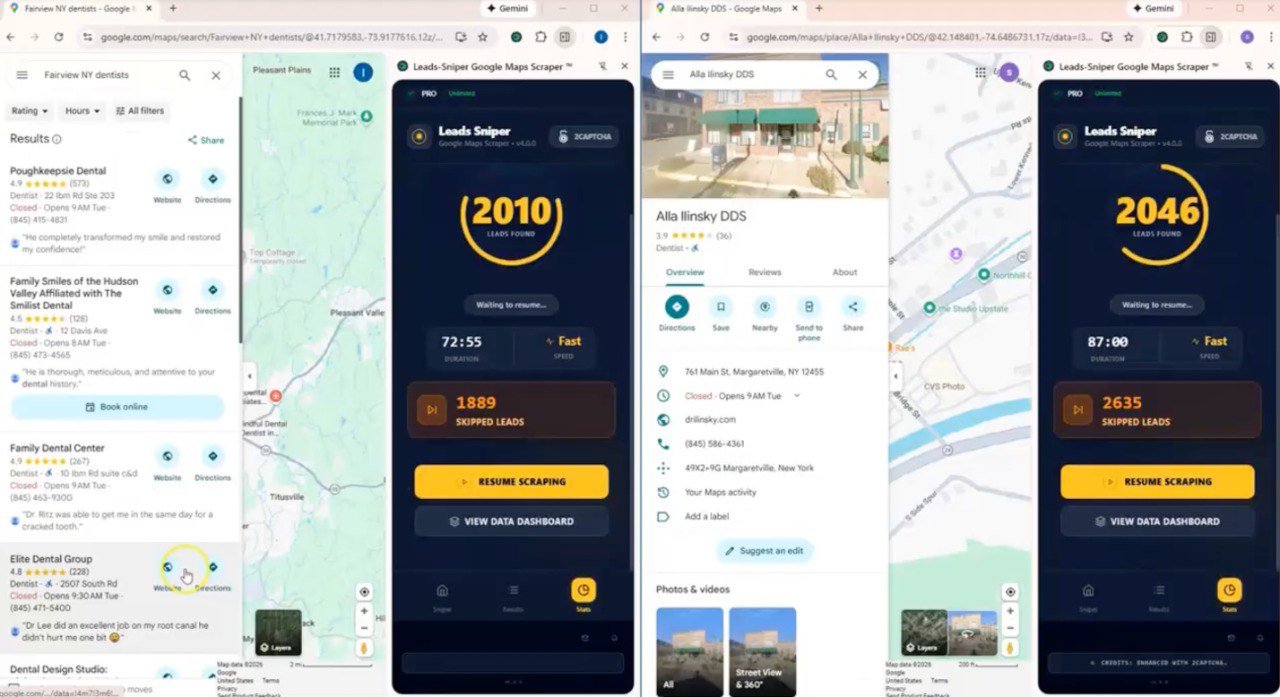
For users who need to extract detailed business information, email address, reviews, or data from Google Maps search results at scale, third-party tools and web scrapers are often the most effective solution. Over 65% of global enterprises adopted data extraction tools by the end of 2023 to support real-time analytics.
When to Use Third-Party Tools & Scrapers
These tools are invaluable when you need to:
- Gather contact information for lead generation campaigns.
- Conduct competitive research on businesses in specific areas.
- Analyze customer reviews for sentiment and trends.
- Build a database of businesses within a particular category or geographic radius.
- Export data that Google Takeout or My Maps cannot easily provide (e.g., specific search result listings).
Types of Third-Party Tools
Third-party solutions range from browser extensions that scrape data directly from the webpage you're viewing to sophisticated web-based services and desktop applications designed for large-scale data extraction.
- Browser Extensions: These often work by scanning the Google Maps search results page you're currently viewing and allowing you to export the displayed data.
- Web-Based Scrapers: These services often have dedicated interfaces where you input search parameters (location, keywords) and they process the extraction, providing a downloadable file.
- Desktop Software: More powerful tools that can run more complex scraping tasks, often with advanced filtering and scheduling capabilities.
How They Work: Ethical Scraping & Data Extraction
These tools automate the process of browsing Google Maps, identifying relevant businesses, and extracting specified data points. Ethical scraping involves respecting website terms of service, not overwhelming servers with requests, and focusing on publicly available data.
Most tools are designed to mimic human browsing behavior to avoid detection and adhere to ethical standards. They extract the information that is visible to a human user on the Google Maps interface and organize it into a structured format, most commonly a CSV file.
Key Data Points These Tools Can Extract
Third-party scrapers are particularly good at extracting detailed business information, often including:
- Business Names
- Addresses
- Phone Numbers
- Email Address
- Website URLs
- Categories
- Google Maps Ratings (e.g., 4.5 stars)
- Number of Reviews
- Opening Hours
- Sometimes, snippets of reviews or short descriptions.
- Crucially, many of these tools can also extract latitude and longitude coordinates directly from the search results.
Method 4: Google Maps API (For Developers & Advanced Automation)

For developers or technically inclined users who require highly customized, automated, and large-scale data extraction, the Google Maps Platform APIs offer the most robust and flexible solution.
When to Consider the Google Maps API
The API is the preferred choice for:
- Building custom applications that require location data.
- Integrating Google Maps data directly into existing software or databases.
- Automating data collection processes that need to run regularly.
- Accessing highly specific geospatial data not readily available through other methods.
- Applications where real-time data updates are critical.
Overview of Relevant APIs
Several APIs within the Google Maps Platform are relevant for data extraction:
- Places API: This is the primary API for retrieving detailed information about millions of businesses and points of interest worldwide. It can return names, addresses, phone numbers, website URLs, ratings, reviews, and more.
- Geocoding API: This API converts addresses into geographic coordinates (latitude and longitude) and vice versa. It's essential for precise location mapping and spatial analysis.
- Geocoding API: This API converts addresses into geographic coordinates (latitude and longitude) and vice versa. It's essential for precise location mapping and spatial analysis.
What the API Can Do
Using the Google Maps APIs, you can:
- Search for businesses by keyword, location, and category.
- Retrieve detailed profiles for specific places.
- Gather reviews and ratings for businesses.
- Convert addresses to coordinates for mapping and analysis.
- Automate data collection for large-scale projects.
The data is returned in JSON format, which can then be processed using programming languages to generate CSV files or populate databases.
Requirements & Considerations
- API Key: You will need to obtain an API key from the Google Cloud Platform.
- Billing: Most Google Maps Platform APIs are pay-as-you-go, meaning you'll be charged based on usage. A free tier is available, but extensive data extraction can incur costs.
- Quotas and Limits: Google imposes usage limits (quotas) on API calls to prevent abuse. You need to manage your requests efficiently.
- Technical Expertise: Requires programming knowledge (e.g., Python, JavaScript) to interact with the APIs and process the returned data.
Post-Export: Harnessing Your Google Maps Data in Excel (The "What Next" Guide)
Successfully exporting your Google Maps data is only the first step. The real power lies in how you process and analyze it within Excel. As of 2026, 203,913 companies are verified to be using Microsoft Excel [GTM Intelligence - Landbase, 2026], highlighting its pervasive role in data analysis.
Initial Data Cleaning & Formatting
Once your data is in Excel, you'll likely need to clean it up. Common tasks include:
- Removing Duplicates: Use Excel's "Remove Duplicates" feature to eliminate redundant entries.
- Standardizing Formats: Ensure addresses, phone numbers, and dates are in a consistent format across all rows.
- Text to Columns: Use the "Text to Columns" feature to split combined fields (e.g., "City, State" into separate columns).
- Handling Missing Data: Identify and decide how to manage blank cells or incomplete entries.
Geocoding Missing Coordinates
If your exported data lacks latitude and longitude coordinates (common with Google Takeout), you can add them using Excel.
- Google Sheets with Formulas: While not directly in Excel, you can import your CSV into Google Sheets, use the
GOOGLEFINANCEfunction or API calls within custom scripts to geocode addresses, and then export back to CSV for Excel. - Third-Party Geocoding Services: Many online services offer bulk geocoding. You upload your address list, and they return the coordinates for a fee.
- Excel Add-ins: Various Excel add-ins can perform geocoding directly within your spreadsheet.
Once you have coordinates, you can use them for advanced analysis, such as plotting points on a map within Excel or using spatial functions.
Analyzing Your Dataset
With clean and structured data, you can begin analysis:
- Filtering and Sorting: Easily filter by category, location, rating, or hours to find specific information.
- PivotTables: Create powerful PivotTables to summarize data, identify trends, and aggregate metrics (e.g., average rating per business category, number of businesses per city).
- Conditional Formatting: Highlight cells based on criteria (e.g., businesses with low ratings, businesses closing soon).
Advanced Techniques and Automation
For users looking to maximize their Excel skills:
- VLOOKUP/XLOOKUP: Combine your Google Maps data with other datasets (e.g., sales data, customer lists).
- Power Query: For complex data transformations and ongoing data refreshes, Power Query (built into Excel) is invaluable.
- AI Integration: As of April 2023, 63% of advanced Excel users have used at least one AI tool with Excel [Acuity Training, 2023], indicating growing opportunities for AI-assisted analysis and automation.
Conclusion
Exporting your Google Maps lists to Excel transforms static location data into a dynamic resource for analysis, strategy, and organization. Whether you're an individual planning a trip, a small business owner researching competitors, or a developer building sophisticated applications,
There's a method suited to your needs. Google Takeout offers an official way to access personal saved places, Google My Maps allows for curated custom lists, third-party scrapers provide scalable business data extraction, and Google Maps APIs offer unparalleled flexibility for developers.
FAQ"S
1. Can I use the Google Maps Scraper to export Google Maps lists to Excel?
Yes — Leads Sniper Google Maps Scraper tool allows you to extract business data from Google Maps and export it directly into Excel (.xlsx) or CSV format. This makes it simple to organize, analyze, and use the data in spreadsheets for lead generation or research.
2. What types of data can be exported from Google Maps into Excel using this tool?
The Lead Sniper scraper can extract and export 60+ data fields such as business name, address, phone numbers, emails, website, category, ratings, reviews, coordinates (latitude/longitude), social profiles, and more — all ready to use in Excel.
3. Do I need technical skills to export Google Maps lists to Excel?
No. This Google Maps Scraper tool is designed to be user-friendly and requires no coding. You simply scrape the listings on Google Maps and export the results to Excel in one click.
4. Can I export unlimited Google Maps leads to Excel?
Yes — the tool supports unlimited lead extraction, so you can export as many Google Maps listings into Excel as you need without restrictions.
5. Can the scraper extract emails and export them to Excel?
Yes — if the email addresses are available for businesses in the search results or on their websites, the tool will collect those emails and include them in the Excel export.