Google Maps remains a powerful resource for business and location data, but as its platform evolves, so do your options—and limitations—for exporting that data, especially if your goal is to use it in Excel. In 2026, not all export paths are equal. Some popular 2024 methods are gone, others became unreliable, and there are new compliance pressures. This guide gives you a clear, honest blueprint for what works, what doesn’t, and how to make Google Maps data truly Excel-ready—no code required wherever possible.
Understanding What You Can and Can’t Export in 2026
Before diving into methods, know the major Google Maps data types and where the current roadblocks are:
What you CAN still export (with limitations):
- Public business listings (name, address, phone, website, category, ratings/reviews)
- Some POI and geographic info (coordinates, place types)
- Timeline/location history (for your own Google account—format/export changes apply)
- Your saved places (“Your Places” or Lists), in KML or through Google Takeout (subject to restrictions)
What you CANNOT reliably export anymore:
- Bulk personal saved places (Google Takeout export can be buggy/incomplete)
- Complete review histories (your own or others)—Google restrictions tightened
- Direct exports of private lists or custom maps beyond KML
- Certain fields like business emails unless scraped/third-party enriched
- Anything at bulk scale without hitting new rate limits/captcha if using manual or browser scraping
Buyer beware: Many tools or tutorials claim full, bulk business or review exports—most don’t work as advertised in 2026 due to Google’s API/policy changes.
Step-by-Step: Exporting Google Maps Data to Excel (2026 Methods)
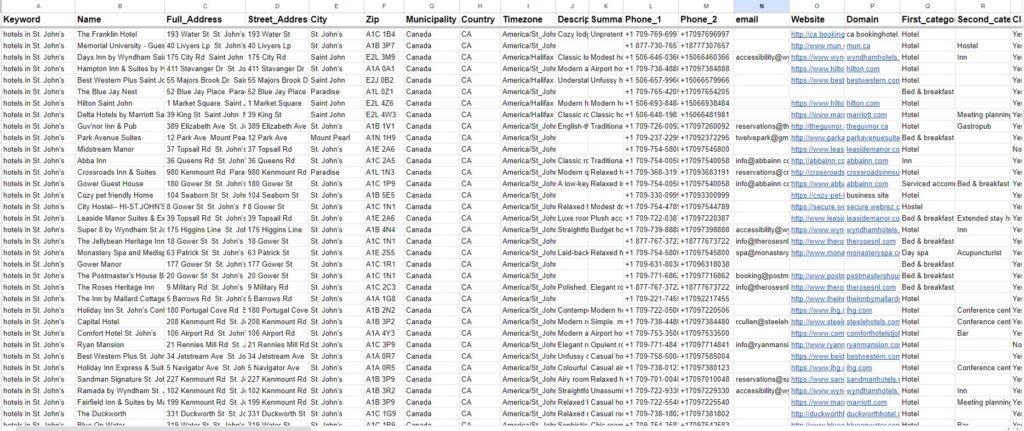
A. For Public Business Listings
Option 1: Official API + Excel
- Create Google Cloud Project and enable Places API.
- Run queries for business type/location (requires API skills or tools like Outscraper/Botsol that generate CSV).
- Export JSON/CSV results.
- If JSON: Use Excel’s “Get & Transform Data” to import the file (Data tab > “Get Data” > “From File” > “From JSON”). Map columns as needed.
- If CSV: Open directly in Excel.
Warning: APIs require billing. As of 2026, Google rates have increased, and daily request quotas are enforced. Exceeding them incurs costs or blocks further exports.
Option 2: Third-Party Tools (No Coding)
- Outscraper, Botsol, and others now offer direct Excel/CSV download. Example:
- Enter search (“restaurants in London”).
- Tool scrapes, saves output as .xlsx or .csv (see current tool cap before buying).
- Open download directly in Excel—fields are auto-mapped.
Limitations: Some tools have shifted to “credits” or monthly export limits after Google’s 2025 anti-bot upgrades. Captcha errors are more common. Always run a sample to check field completeness.
B. For Your Saved Places, Timeline, or Location History
Export Your Saved Lists (“Your Places” or custom lists)
- Go to Google Takeout (takeout.google.com).
- Select “Maps (Your Places/Lists)” and export.
- Download file (KML by default).
- Convert KML to Excel:
- Use an online KML-to-CSV converter, or
- Import KML into Google My Maps, export layer to CSV, then open in Excel.
Warning: In 2026, Takeout exports for Google Maps are incomplete for certain list types and may miss custom metadata. Always verify the output.
Export Location History (“Timeline”)
- Takeout provides JSON files.
- To analyze in Excel:
- Use a free JSON-to-CSV converter site.
- Then load into Excel.
- Fields may include date, coordinates, place visited, but not all timeline details are preserved.
C. Understanding File Types for Excel Users
- CSV: Most compatible. No formatting or formulas; just raw data.
- JSON: Needs conversion or Excel’s Power Query tool to flatten/transform.
- KML: XML-based, for geographic data. Excel can’t open directly; must be converted.
- XLSX: Provided by some tools; cleanest for direct Excel use.
What Changed in Google Maps Exports Since 2024/2025?
- API Pricing & Quotas: Costs per API call increased. Free usage tier reduced; daily export caps enforced.
- Bulk Personal Data Export: Takeout exports are more limited; missing fields, list constraints.
- UI & Output Changes: Google adjusted results UI multiple times—breaking many browser-based scrapers.
- Compliance: Google started suspending accounts for automated or scripted scraping outside API (privacy/TOS crackdown).
- Third-Party Tool Limits: Many tools now batch or queue jobs, introduce data “credit” systems, or cap fields due to anti-scrape enforcement.
- Mobile vs. Desktop: Many mobile features (like timeline edits or list management) do NOT allow export; desktop/web is your best option.
Honest Warnings & Limitations for 2026
- No method guarantees a 100% complete export of all mapped business data or timeline/location history.
- Manual scraping tools may work one day, break the next. Always test before committing to a large job.
- Exported data often has missing columns (emails, owner info, full reviews)—be skeptical of “one click export all” claims.
- APIs and tools can get your API key/account restricted for exceeding limits or violating TOS.
- Excel imports may require mapping field names or cleaning up (non-English characters, multi-line addresses).
Practical Use Cases: Lead Gen, Research, and the Excel Workflow
- Lead Generation: Build lists by exporting public business data; open in Excel for sorting, filtering, mail-merging, and campaign planning.
- Market Research: Analyze competitor density, customer ratings by region, or location clustering.
- Data Cleaning: Use Excel to filter duplicates from exports, match address formats, or segment leads.
Conclusion: 2026’s Reality—Get (and Use) Google Maps Data in Excel, Smarter
Exporting data from Google Maps to Excel in 2026 is possible—but only if you know what data you can get, what’s now blocked, and which file types work best. Forget “magic one-click” promises; the best path blends official APIs (for structured, supported data), reputable scraping tools (for no-code needs), and a keen eye on file type (CSV/KML/JSON) for smooth Excel imports.
Key takeaways:
- Always check current tool limits and Google policies (they change often).
- Pick the export path—manual, API, or tool—that best matches your true Excel workflow needs.
- Expect some cleanup in Excel after import, especially for large/bulk jobs.
- Use data ethically, and don’t rely on outdated “hacks” or promise-all exporters.
Ready to automate your lead generation?
Leads-Sniper offers a powerful, user-friendly solution that makes data extraction from Google Maps efficient and effective. Stop wasting hours on manual entry and start analyzing data that matters.
FAQs
Is it legal to scrape data from Google Maps?
Scraping publicly available data is generally considered legal in many jurisdictions, provided you are not bypassing security measures (hacking) or extracting private personal data. However, it may violate Google's Terms of Service. Always consult with legal counsel regarding your specific use case.
What specific data points can I extract?
Using a tool like Leads-Sniper, you can typically extract Business Name, Full Address, Phone Number, Website URL, Star Rating, Total Review Count, and Business Category.
Why is my Google Takeout file a JSON?
JSON is a lightweight data-interchange format that is easy for machines to parse. While it looks confusing to humans, it is the industry standard for transferring data between servers. Excel's Power Query handles it easily.
Can I export data for free?
Yes, Google Takeout is 100% free for personal data. For public business data, many scrapers offer a free trial or a "freemium" tier, but large-scale exports usually require a subscription.
Why can't I find my Timeline in Google Takeout?
As of 2025/2026, Timeline data is stored on your mobile device. You must export it from the Google Maps app settings on your phone.
Which is better, CSV or JSON?
CSV is easier (it opens directly in Excel), but JSON holds more complex data. Most 2026 users prefer CSV for simple lists.