TL;DR: Google Maps coordinates are two numbers. Latitude comes first, longitude comes second. Latitude measures how far north or south a location is from the Equator; longitude measures how far east or west it is from the Prime Meridian. Positive latitude = north, negative = south. Positive longitude = east, negative = west.
Drop a pin on Google Maps and a pair of numbers appears beneath it. Most people ignore them. But those numbers can pinpoint a location with a level of precision that street names, zip codes, and landmark descriptions simply cannot match.
This guide explains how to read Google Maps coordinates step by step. You'll learn what each number means, how positive and negative signs indicate direction, how to decode both major coordinate formats, and what coordinate precision looks like in practice.
The examples used throughout this post are real-world cities: New York, Los Angeles, London, and Sydney, so every concept stays grounded and practical.
Quick answer: how do you read Google Maps coordinates?
Google Maps coordinates consist of two numbers separated by a comma. The first number is latitude, which tells you how far north or south a location sits relative to the Equator. The second number is longitude, which tells you how far east or west it sits relative to the Prime Meridian.
A positive latitude means north of the Equator. A negative latitude means south. A positive longitude means east of the Prime Meridian. A negative longitude means west.
Example: New York City sits at 40.7128, -74.0060. The first number (40.7128) places it in the Northern Hemisphere. The second number (-74.0060) places it west of the Prime Meridian, in the Western Hemisphere.
What Google Maps coordinates mean

Google Maps uses the geographic coordinate system, a global grid that lets any point on Earth be expressed as two numbers. This system has been used in navigation for centuries, and Google Maps applies it digitally, translating that grid into readable number pairs.
Latitude tells you how far north or south you are from the Equator. Longitude tells you how far east or west you are from the Prime Meridian. Together, they create a precise crosshair for any location on the planet.
Latitude comes first
Latitude measures your position north or south of the Equator, which sits at 0°. Values range from -90° (the South Pole) to +90° (the North Pole). The higher the absolute value of the latitude, the further from the Equator the location sits.
Most of the continental United States falls between 25° and 49° north latitude.
Longitude comes second
Longitude measures your position east or west of the Prime Meridian, a line that runs through Greenwich, England, and sits at 0°. Values range from -180° to +180°, wrapping around the entire globe.
The Prime Meridian divides the Eastern and Western hemispheres, much like the Equator divides north from south.
What the positive and negative signs mean
The sign in front of a coordinate number tells you direction. Here's how the system works:
Most of the United States carries a negative longitude (Western Hemisphere) and a positive latitude (Northern Hemisphere). Australia, by contrast, has a negative latitude (Southern Hemisphere) and a positive longitude (Eastern Hemisphere).
How to read a coordinate pair step by step
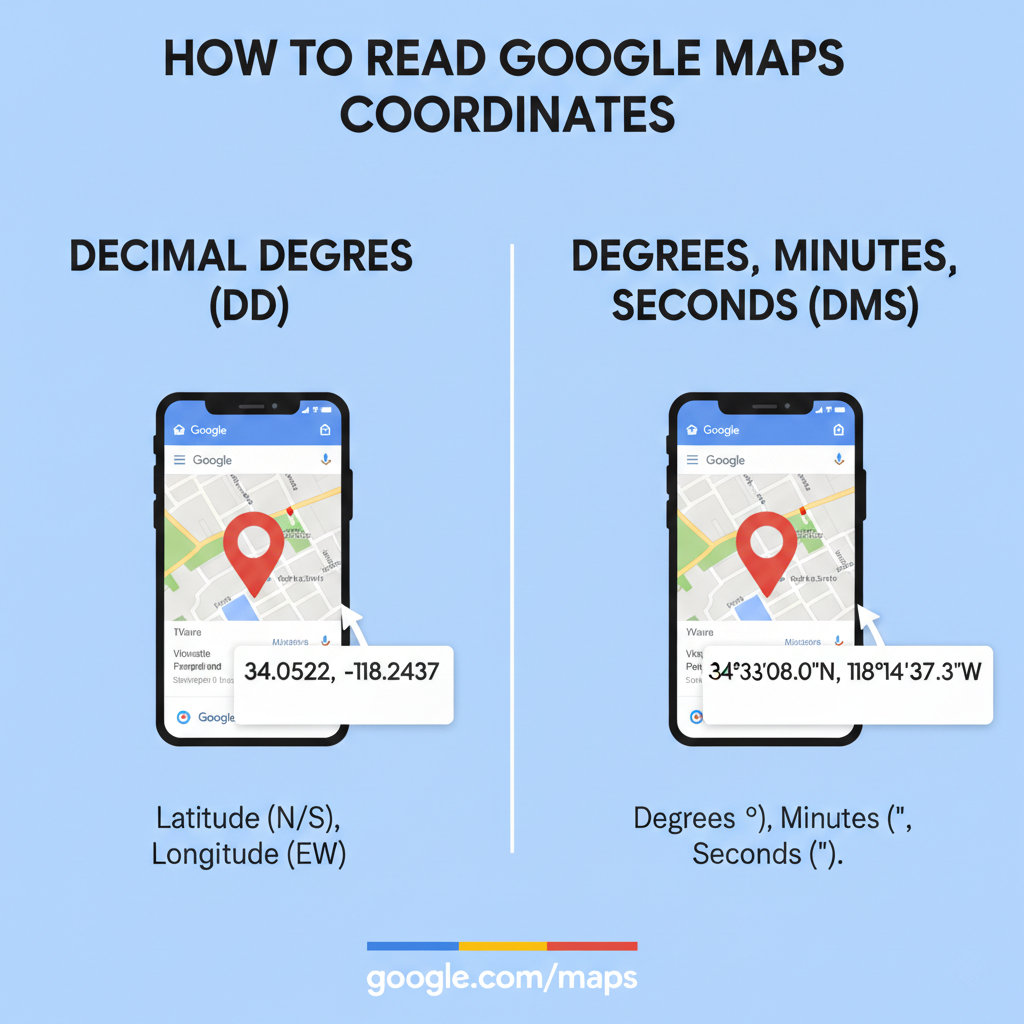
Reading a coordinate pair becomes straightforward once you know the structure. In Google Maps, the coordinate pair is normally written as latitude first, followed by longitude.
Example 1: Decimal Degrees
Take New York City: 40.7128, -74.0060
- 40.7128 → latitude, positive → 40.7128° north of the Equator
- -74.0060 → longitude, negative → 74.0060° west of the Prime Meridian
Result: New York is in the Northern and Western hemispheres. That lines up exactly with where it sits on a map.
Now try Los Angeles: 34.0522, -118.2437
- 34.0522 → positive latitude → Northern Hemisphere
- -118.2437 → negative longitude → Western Hemisphere, and significantly further west than New York (118° vs 74°)
Example 2: Southern and Eastern Hemisphere
Sydney, Australia: -33.8688, 151.2093
- -33.8688 → negative latitude → 33.8688° south of the Equator
- 151.2093 → positive longitude → 151.2093° east of the Prime Meridian
Sydney sits in the Southern and Eastern hemispheres, which is exactly right.
London: 51.5074, -0.1278
- 51.5074 → positive latitude → Northern Hemisphere
- -0.1278 → slightly negative longitude → just barely west of the Prime Meridian
London is almost directly on the Prime Meridian, which is why its longitude value is so close to zero.
How to tell north, south, east, and west
The fastest way to orient yourself with any coordinate pair:
- Look at the first number → positive means north, negative means south
- Look at the second number → positive means east, negative means west
- The size of each number tells you how far from the reference line (Equator or Prime Meridian)
Google Maps coordinate formats explained
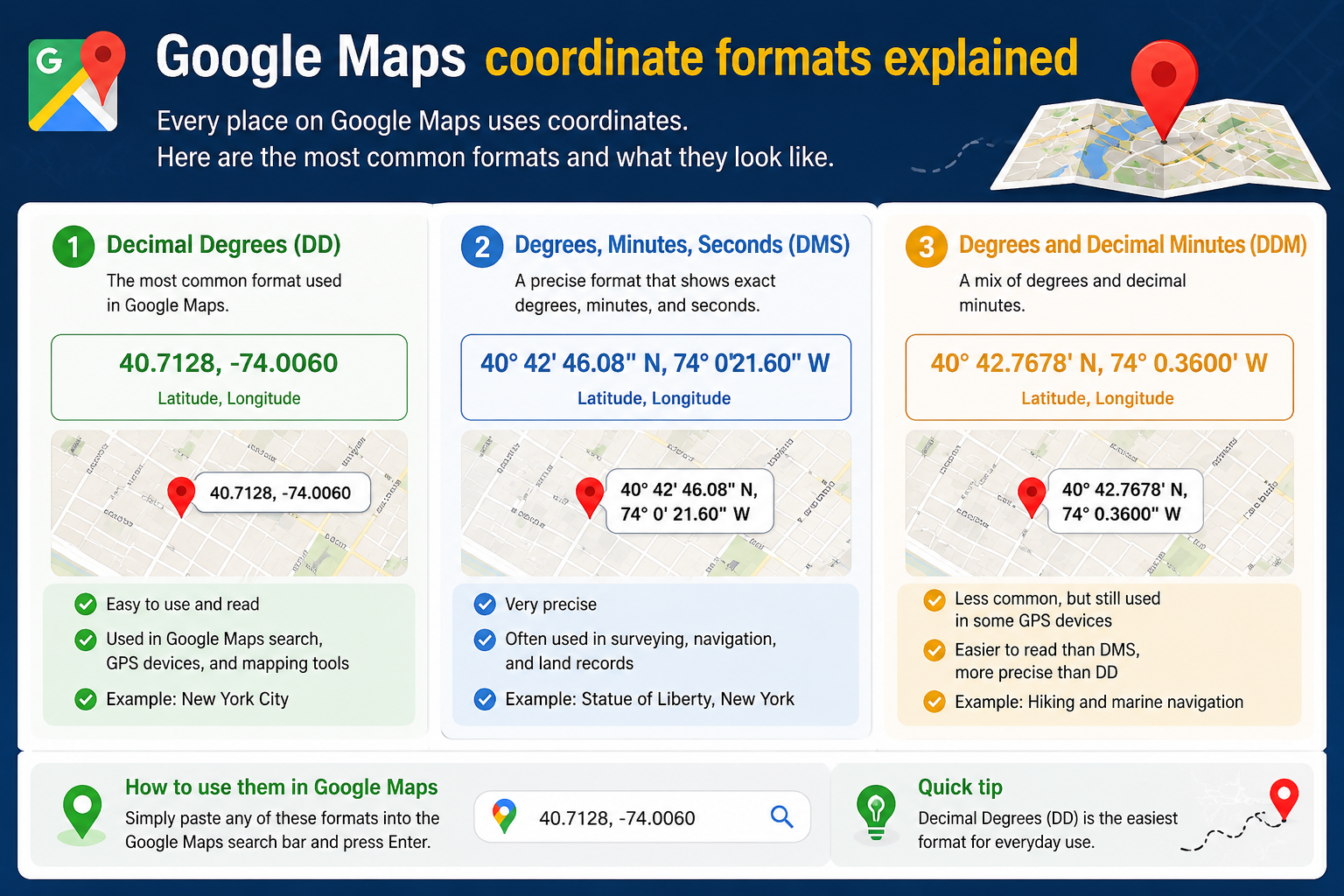
Google Maps supports more than one way to write coordinates. The format you encounter depends on the context, whether you're using Google Maps itself, a GPS device, or traditional navigation charts.
Decimal Degrees (DD)
Decimal Degrees is the default format Google Maps uses. Coordinates appear as plain decimal numbers, positive or negative, with no letters or symbols beyond the decimal point.
Format: latitude, longitude
Example (New York): 40.7128, -74.0060
Example (London): 51.5074, -0.1278
DD is the most common format for digital mapping, APIs, and any software that handles GPS coordinates. It's clean, compact, and easy to copy and paste.
Degrees, Minutes, Seconds (DMS)
DMS is the older format, still used in aviation, maritime navigation, and some GPS units. Instead of expressing the fractional part of a degree as a decimal, it breaks it down further into minutes (') and seconds (").
Format: degrees° minutes' seconds" direction
Example (New York): 40° 42' 46.1" N, 74° 0' 21.6" W
Example (London): 51° 30' 26.6" N, 0° 7' 40.1" W
Notice that DMS coordinates commonly use letters (N, S, E, W) to indicate direction instead of positive and negative signs. Direction is handled by the compass letter at the end rather than a minus sign.
Does Google Maps accept other formats?
Yes. Google Maps also recognizes Degrees Decimal Minutes (DMM), a hybrid format that uses degrees plus decimal minutes without breaking down to seconds. However, DD is by far the most practical format for everyday use, and it's what Google Maps displays by default when you right-click or drop a pin.
If you paste a DMS coordinate into the Google Maps search bar, Google automatically converts it and drops a pin at the correct location. You can learn more about the differences between these formats in the Google Maps coordinate formats guide.
Finding coordinates in Google Maps takes just a few seconds, whether you're on a desktop browser or using the mobile app.
On desktop
- Open Google Maps in your browser
- Navigate to the location you want
- Right-click directly on that spot
- A context menu appears with coordinates at the very top in DD format
- Click the coordinates to copy them automatically to your clipboard
[Visual recommended: screenshot of the right-click context menu showing coordinates at the top]
On Android and iPhone
- Open the Google Maps app
- Press and hold on any unmapped area of the map to drop a red pin
- A card slides up from the bottom of the screen
- Scroll down in that card to find the coordinates in DD format
- Tap the coordinates to copy them
[Visual recommended: screenshot of the dropped pin card showing coordinates]
For a more detailed walkthrough, including how to find GPS coordinates for a specific address, the how to find GPS coordinates on Google Maps guide covers the full process.
How to search Google Maps using coordinates
You can use a coordinate pair to search for any location directly in Google Maps, which is useful when you have coordinates but no address.
Formats that work
Google Maps accepts several input formats in its search bar:
- Decimal Degrees: 40.7128, -74.0060
- DMS: 40° 42' 46.08" N 74° 0' 21.6" W
- DD with explicit direction letters: 40.7128 N 74.0060 W
All three will drop a pin at the correct location.
Common formatting mistakes
- Missing the comma: Writing
40.7128 -74.0060without a comma can cause parsing errors. Always separate latitude and longitude with a comma. - Swapping the order: Entering longitude before latitude sends you to the wrong location, sometimes to the middle of an ocean. Latitude always comes first.
- Dropping the negative sign: Entering
74.0060instead of-74.0060for New York's longitude places the pin in Central Asia, not New Jersey. The minus sign is not optional.
How coordinates appear in Google Maps URLs
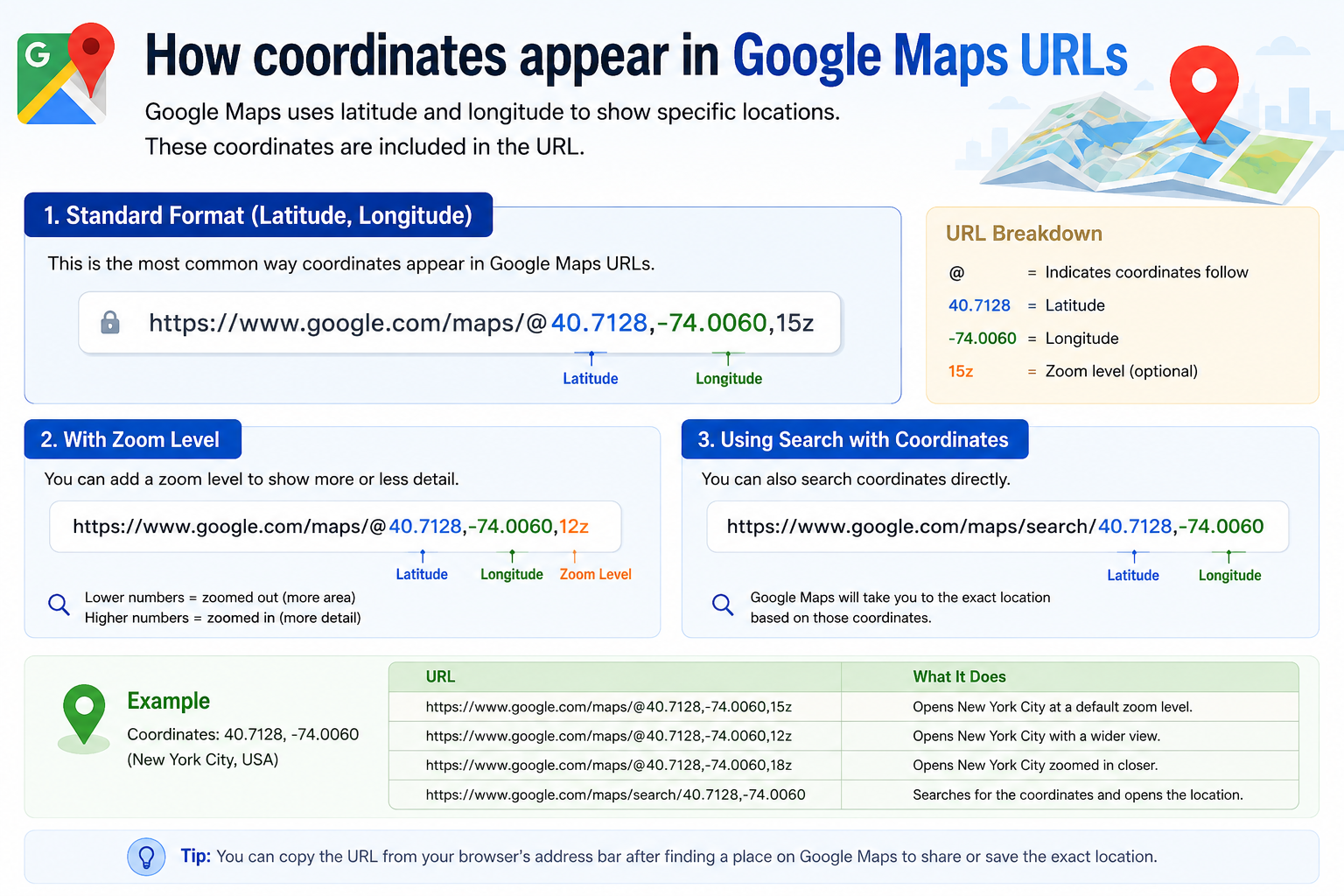
When you navigate to a location in Google Maps, the coordinates are embedded directly in the URL. Here's what the URL for New York looks like:
https://www.google.com/maps/@40.7128,-74.0060,17z
Breaking that down:
@signals the start of the map view parameters40.7128→ latitude-74.0060→ longitude17z→ zoom level (higher number = more zoomed in)
This URL structure means you can share an exact map view just by sharing the link, or manually edit the coordinates in the URL to navigate to any location. For a full breakdown of how to use coordinates to search locations, see the search by latitude and longitude guide.
[Visual recommended: annotated screenshot of a Google Maps URL with the lat, long, and zoom segments labeled]
How precise Google Maps coordinates are
The decimal portion of a coordinate directly controls how precise the location is. More decimal places means a smaller, more specific area.
What more decimal places usually mean
Google Maps typically displays four to seven decimal places depending on zoom level. For most everyday navigation, four decimal places is more than sufficient. Note that the precision values in the table above are approximate distances for latitude; longitude precision varies depending on your latitude.
When precision matters
For casual navigation, finding a restaurant or meeting a friend, two or three decimal places work fine. For delivery logistics, construction, fieldwork, or any application requiring exact positioning, four to six decimal places become important.
If coordinates are being used programmatically (for APIs, routing software, or data pipelines), preserving the full precision of the original coordinate is always the safer choice. Rounding early can introduce positional errors that compound across large datasets.
Common mistakes when reading Google Maps coordinates
Even people who work with coordinates regularly make these errors:
Confusing latitude and longitude: Latitude always comes first. If you mix them up, you'll end up in the right numeric position on the wrong axis, often in the middle of the ocean. When in doubt, remember: lat, then long.
Ignoring the negative sign: The minus sign carries real directional meaning. Dropping it accidentally turns west into east or south into north. In practice, this can place a point thousands of miles from where it should be.
Assuming format: If a coordinate uses degree symbols and compass letters (like 40° 42' N), it's DMS, not DD. Entering DMS values into a system expecting DD will produce errors. Know which format your tool requires before entering data.
Rounding too aggressively: Shortening 40.7128 to 40.71 reduces precision from street-level to a rough city zone. For general reference this is harmless, but for technical applications it can cause meaningful inaccuracies.
Copying partial coordinates: Sometimes only the latitude copies to the clipboard, especially on mobile. Always verify that both numbers are present and properly separated by a comma before using or sharing a coordinate pair.
If you're dealing with hundreds or thousands of Google Maps listings rather than a single location, manually copying coordinates quickly becomes impractical. In that case, a Google Maps scraper can automate the collection of coordinates and other business data, pulling names, location details, and contact information into a structured spreadsheet without manual effort. The Leads Sniper Google Maps Scraper is built for exactly this kind of workflow.
Put your coordinates to work
Remember three things: latitude comes first, longitude comes second, and the sign tells you the direction. With those rules in place, you can interpret any Google Maps coordinate pair at a glance.
The four city examples in this guide, New York, Los Angeles, London, and Sydney, cover each hemisphere combination. If you can identify the correct hemisphere for all four, you're ready to apply the same logic to any coordinate pair.
Open Google Maps, right-click any location, and read the coordinate pair that appears. Check the sign on each number, identify the hemisphere, and count the decimal places to gauge precision. The more you do it, the quicker the pattern sticks.
If you want to take this further, the GPS coordinates guide and the coordinate format deep-dive are good next steps.
FAQ
What do the two numbers in Google Maps coordinates mean?
The first number is latitude, which tells you how far north or south the location is from the Equator. The second number is longitude, which tells you how far east or west it is from the Prime Meridian. Together, the two numbers identify a single, precise point on Earth.
Which number comes first in Google Maps coordinates?
In Google Maps, latitude always comes first, followed by longitude. In the pair 40.7128, -74.0060, the latitude is 40.7128 and the longitude is -74.0060.
How do you read negative coordinates?
A negative sign indicates direction. A negative latitude means the location is south of the Equator. A negative longitude means the location is west of the Prime Meridian. For example, -33.8688 (Sydney's latitude) places the city south of the Equator, while -74.0060 (New York's longitude) places it west of the Prime Meridian.
How do you read latitude and longitude on Google Maps?
Start with the first number (latitude) and check the sign: positive means north, negative means south. Then look at the second number (longitude): positive means east, negative means west. The size of each number tells you how far from the reference line, the Equator for latitude, the Prime Meridian for longitude.
What is the difference between Decimal Degrees and DMS?
Decimal Degrees (DD) expresses coordinates as plain decimal numbers, such as 40.7128, -74.0060. It uses positive and negative signs to indicate direction. Degrees, Minutes, Seconds (DMS) breaks each value into degrees, minutes, and seconds, and uses compass letters (N, S, E, W) to show direction, for example, 40° 42' 46.1" N, 74° 0' 21.6" W. Google Maps displays coordinates in DD by default but accepts both formats in the search bar.
How many decimal places should Google Maps coordinates have?
Google Maps typically shows four to seven decimal places. Four decimal places give street-level precision (roughly 11 meters for latitude), which is sufficient for most everyday uses. More decimal places increase specificity. Six decimal places get you to very high coordinate precision (around 0.11 meters for latitude). Note that longitude precision varies depending on your latitude.
Can I enter coordinates directly into Google Maps?
Yes. Click or tap the search bar in Google Maps, type or paste a coordinate pair in Decimal Degrees format (e.g., 40.7128, -74.0060), and press Enter or Search. Google Maps will drop a pin at that location. DMS and Degrees Decimal Minutes formats are also accepted.
How do I know which number is latitude?
Latitude is always the first number in a Google Maps coordinate pair. If you see 40.7128, -74.0060, the latitude is 40.7128 and the longitude is -74.0060.
Can Google Maps read DMS coordinates?
Yes. Paste a DMS coordinate like 40° 42' 46.1" N, 74° 0' 21.6" W into the Google Maps search bar and Google will automatically recognize the format, convert it, and drop a pin at the correct location. The map will then display the equivalent Decimal Degrees coordinates.
Why are some coordinates negative?
Negative values indicate direction. A negative latitude means the location is south of the Equator (e.g., Sydney at -33.8688). A negative longitude means the location is west of the Prime Meridian (e.g., New York at -74.0060). The minus sign replaces compass letters like S and W that you'd see in DMS format.
Can I use coordinates from Google Maps in other apps?
Yes, in most cases. Decimal Degrees coordinates from Google Maps are compatible with the vast majority of navigation apps, GIS tools, mapping APIs, and GPS devices. If the receiving app uses DMS format, you'll need to convert first, or paste into Google Maps and let it handle the conversion automatically.
How do I find coordinates on my phone?
Open the Google Maps app, then press and hold on any location on the map until a red pin drops. A card will appear at the bottom of the screen showing the coordinates in Decimal Degrees format. Tap the coordinates to copy them to your clipboard. This works on both Android and iPhone.